

3D configurator without CAD: create your custom spare part
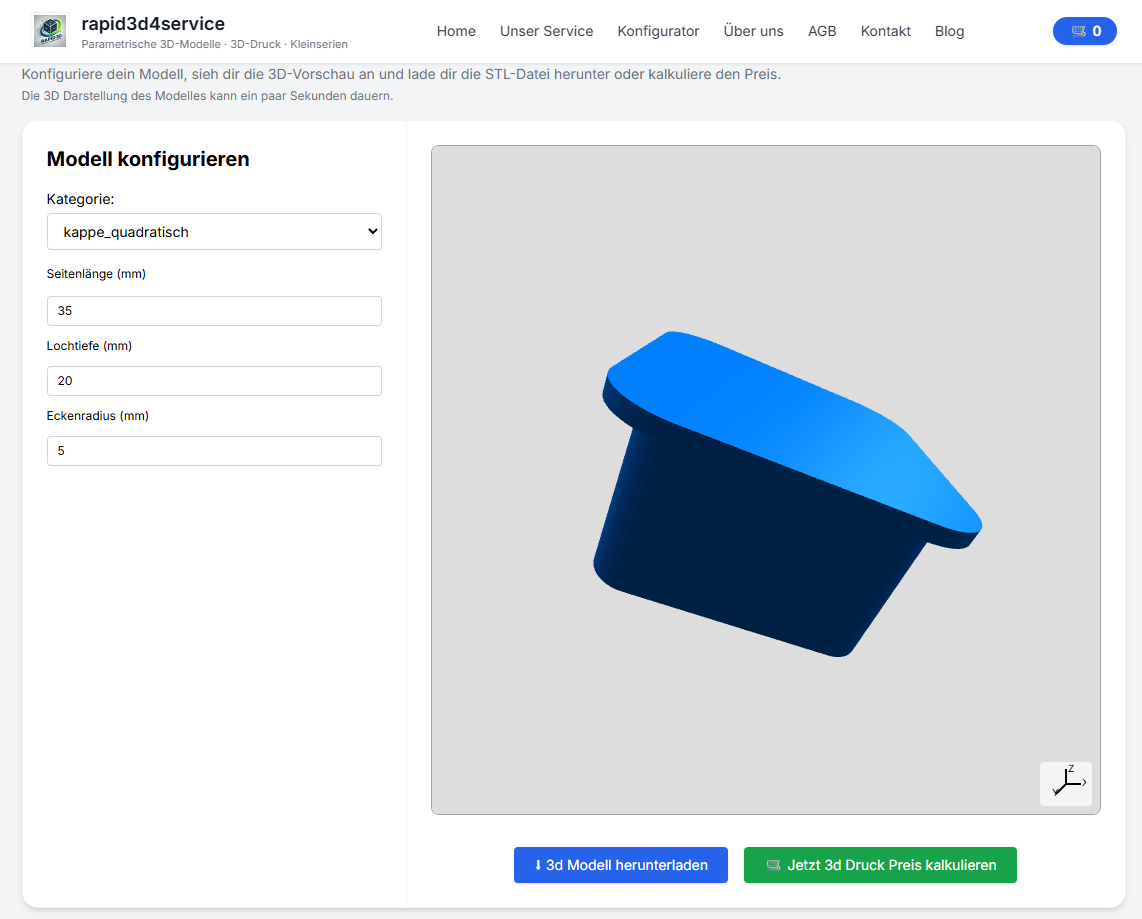
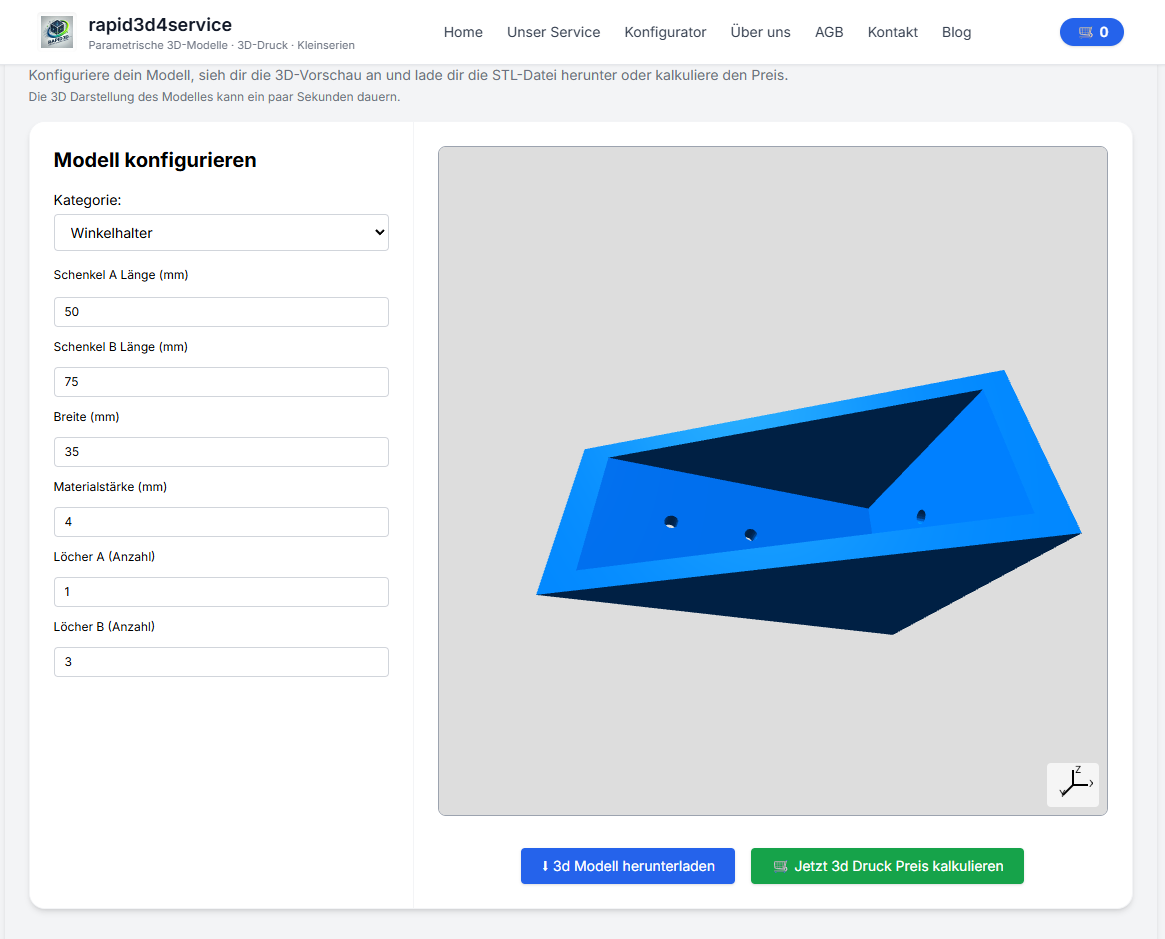
You need a quick custom spare part but do not have CAD software and do not want to model the part from scratch. That is exactly what the BuildYour3D 3D configurator is for. Enter the most important dimensions and parameters, check the preview, create a print-ready STL and either download it or have it professionally 3D printed.
This is particularly practical for custom parts, spare parts, brackets, adapters, spacers and other components for which you know the dimensions but don't want to learn CAD.
What is a 3D configurator without CAD?
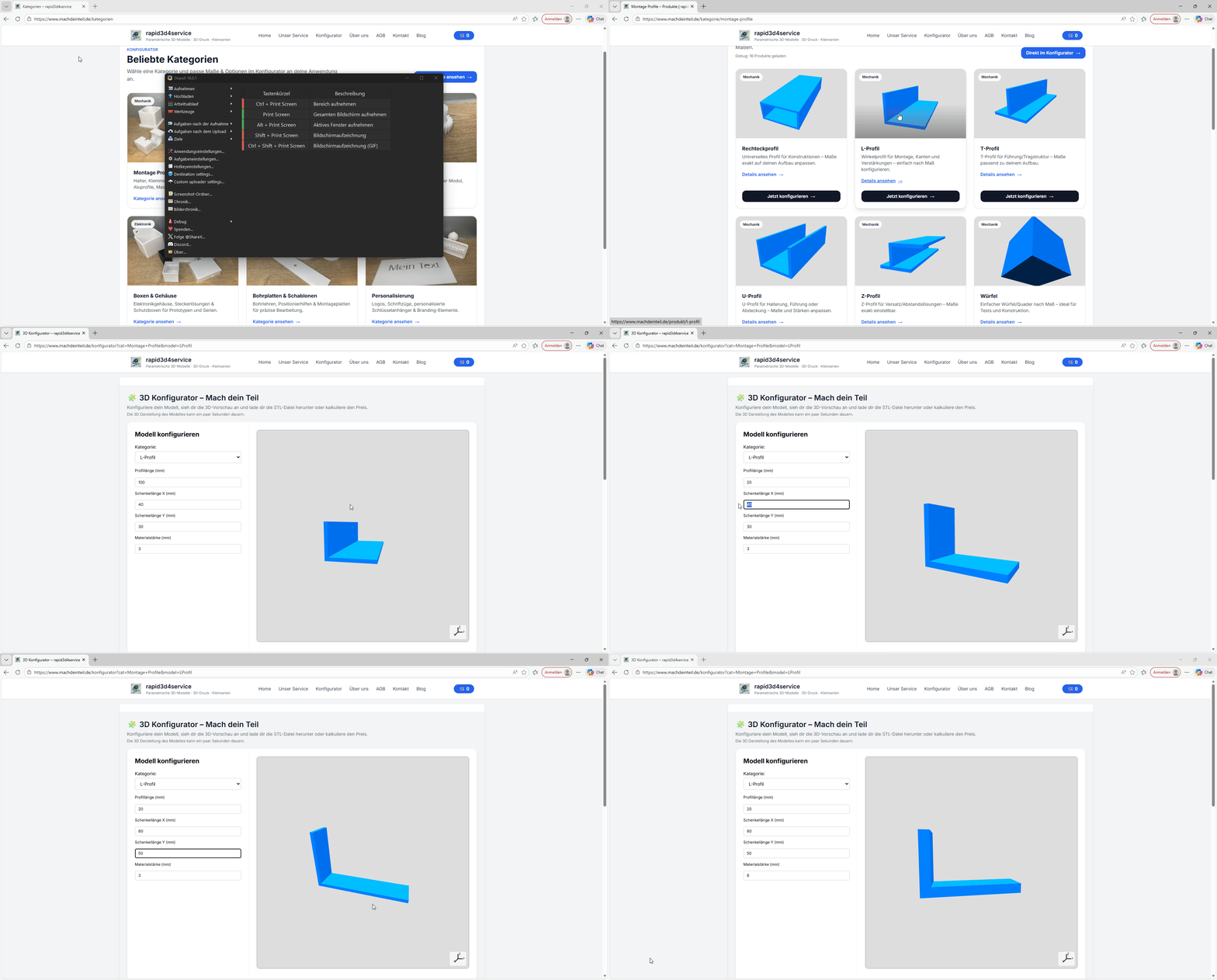
A 3D configurator without CAD is a tool that allows you to create a component using input fields and parameters instead of drawing it yourself. This is ideal if you want to create a custom spare parta custom part, bracket or an adapter, but don't have time for classic CAD design.
In other words: you do not have to build the 3D model yourself. Choose a template, enter dimensions such as diameter, length, hole spacing or wall thickness and the configurator automatically generates the appropriate geometry.
Why parametric instead of CAD?
Traditional CAD is powerful, but often too much effort for everyday parts. If you just need a part that works, a parametrischer configurator usually much faster.
Typical cases where parametric creation is ideal:
- The spare part is no longer supplied
- You need a Custom part
- You only want to change a few values, such as hole spacing, diameter or length
- You möchtest moreere Varianten fast testen
- You want a STL without CAD generate
Step-by-step: how to find the right spare part
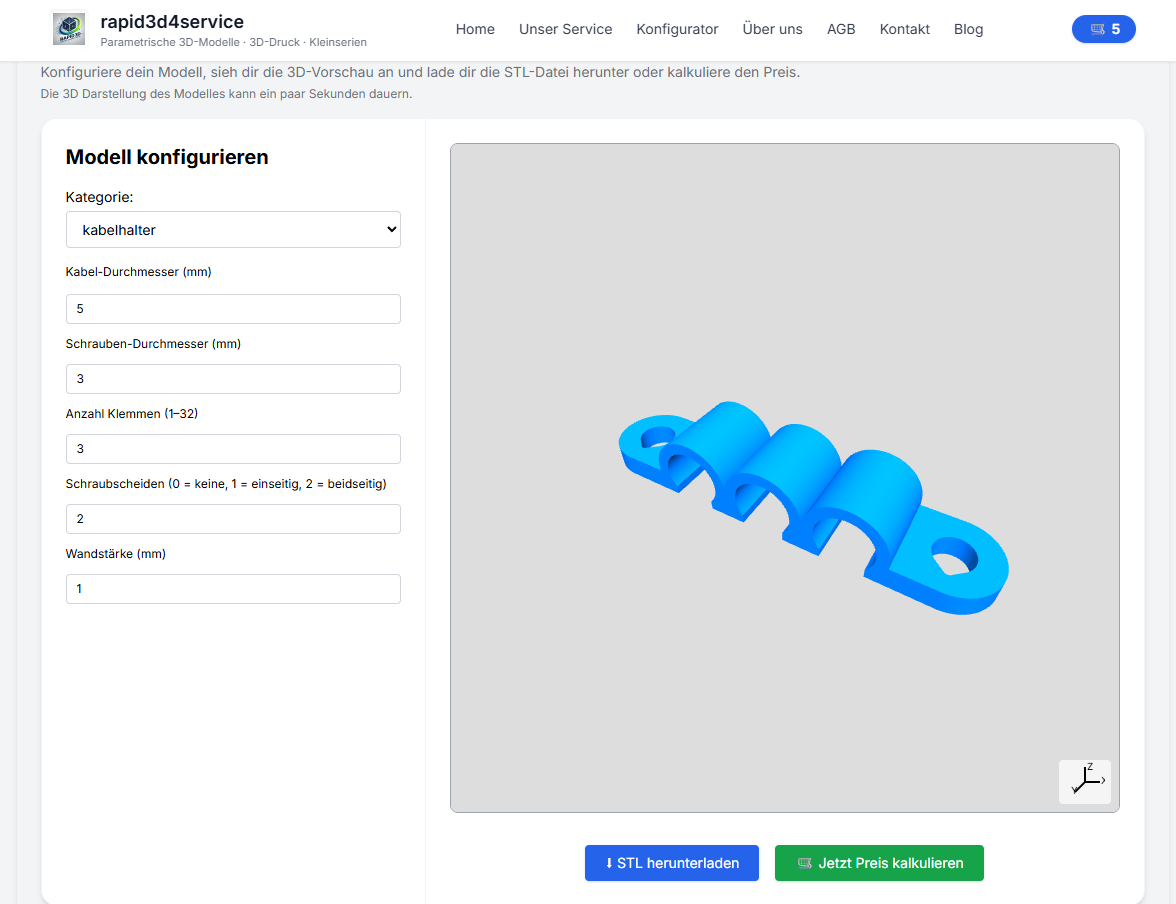
- Open category → Go to BuildYour3D categories and select a suitable template.
- Select a part: Take the template that comes closest to the component you are looking for.
- Enter dimensions: Set the decisive parameters, for example diameter, length, hole spacing or wall thickness.
- Check preview: Check openings, distances, symmetry and critical points.
- generate STL: Create your model as a print-ready STL file.
- file download or have printed: You can use STL yourself or order 3D printing directly.
Which parts is the configurator suitable for?
The configurator is particularly suitable for recurring shapes and functional parts where dimensions can be specifically parameterized.
- Spacers and standoffs
- brackets and adapter
- Montageplatten and Flansche
- Profilteile and simplee Verbinyoungselemente
- parametric custom parts with clear dimensions
Not sure whether your application is suitable? Then start via the Categories or send us via Contact a photo with 2-3 measurements. This is often enough to find the right template.
Measure correctly: the 6 most important measurements
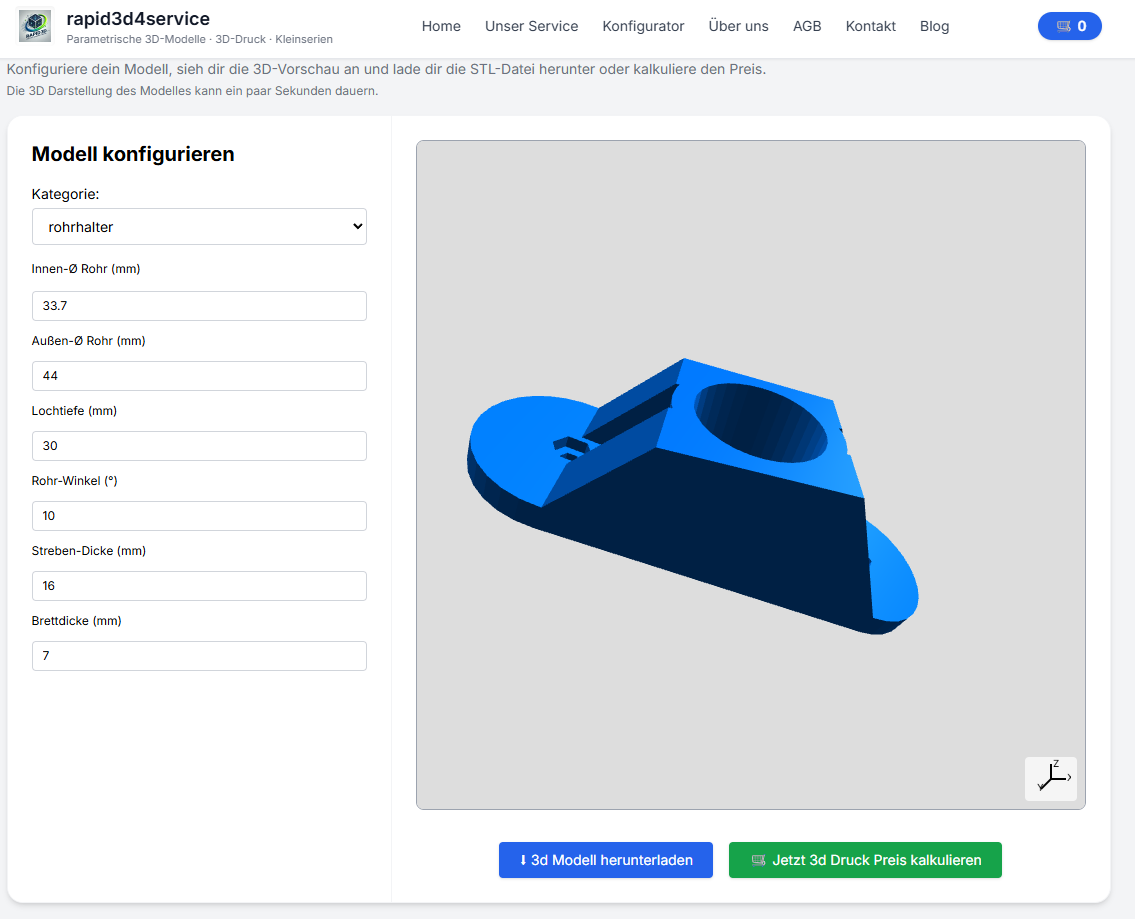
A few precise measurements are often enough to find a suitable spare part. A caliper gauge is usually the most important tool for this.
| Measured value | What is important for? | Tip |
|---|---|---|
| Outer dimensions (W/H/L) | Does the part fit in the existing space? | Always measure the narrowest point. |
| Inner dimension / opening | Does the part fit over something or insert into it? | Internal dimensions often need extra clearance. |
| hole-Ø | Does the screw or pin fit? | Je nach print +0,2 bis +0,6 mm einplanen. |
| Hole spacing (center to center) | Does the part fit existing holes? | Always measure center-to-center. |
| Wall thickness | Affects strength and durability | If under load, choose a thicker text. |
| Chamfers / Radii | Important for assembly and clearance | Small chamfers often work better than sharp edges. |
Tolerances: so that your part really fits
With 3D printing, fits should almost never be planned without clearance. A small tolerance range helps to ensure that screws, plug connections or sliding fits really work.
| application | Game (approximate value) | Example |
|---|---|---|
| Screw through a hole | +0.2 to +0.6 mm | M4 → hole 4,2–4,6 mm |
| Push/Push fit | +0.3 to +0.8 mm | 10 mm tenon → 10.3-10.8 mm holder |
| Clamp fit | 0 to +0.3 mm | Clip or holder with leichtem Sitz |
Practical examples: typical spare parts without CAD
Example 1: Spacer made to measure
A standard part is broken or no longer available. With the configurator, you can adjust the length, inner Ø and outer Ø and create a new spacer as an STL in just a few minutes.
Beispiel 2: holder with individuallyem holeabstand
Many mounts fail by just a few millimeters. This is exactly what a parametric 3D configurator strong: Hole spacing, diameter and panel thicknesses can be customized.
Example 3: Custom part instead of CAD new design
If you already know the approximate shape and only need to vary the dimensions, a Custom part from the configurator often much faster than a completely new CAD design.
Materials and printing: brief but essential
- PLA: good for prototypes and simple applications
- PETG: tough, robust and suitable for everyday use
- ASA/ABS: for higher temperatures and outdoor applications
- Nylon (PA): highly durable for functional parts
For functional spare parts, it is often worth combining greater wall thickness and robusterem material.
Start now
The quickest way to find the right part: Select template, enter dimensions, Check the preview and generate STL. If you have not yet found a suitable template, we will be happy to help you.
Related topics
If you are specifically looking for a 3D configuratora parametric configurator or a Maßteil without CAD this guide is the best place to start. Separate landing pages are also suitable for particularly specific applications for individual categories and part types.
FAQ
What is the quickest way to find a suitable spare part?
Open the Categoriesselect the next suitable template and enter the core dimensions.
Can I create a customized spare part without CAD?
Yes, that's exactly what the configurator is for: you enter the dimensions, instead of drawing a model yourself.
For which parts is a parametric configurator suitable?
Particularly good for spacers, brackets, adapters, flanges, profile parts and other functional components with clear dimensions.
Can I test variants?
Yes, you can quickly change individual values and create several variants as STL.